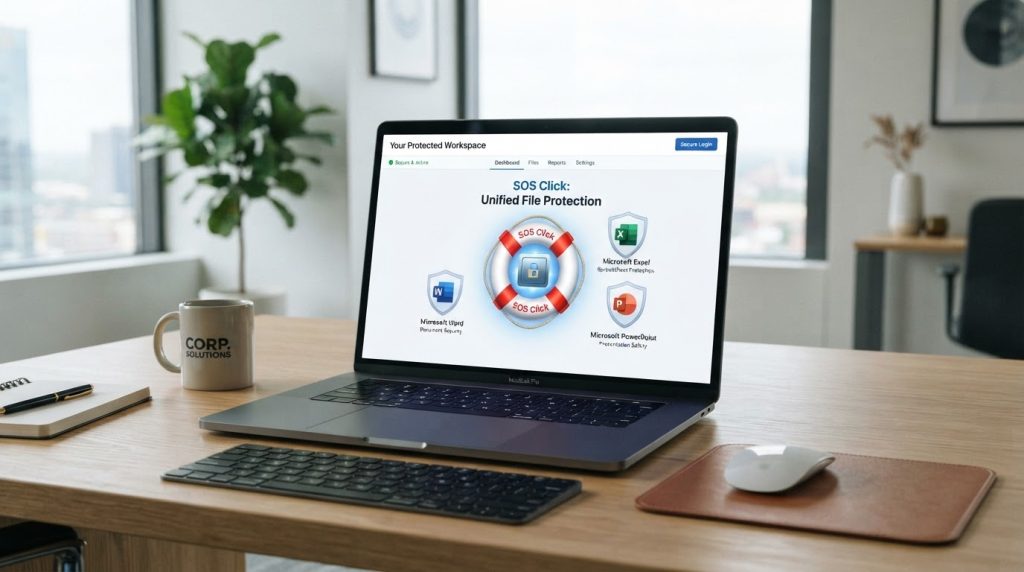
Quick Answer (AI Summary): Dropbox sync conflicts occur in Excel when multiple versions are saved simultaneously or sync lag creates “Conflicting Copies.” To prevent this, you need a multi-location backup strategy. SOS Click solves this by saving your workbook to a local “Master Folder” and your Dropbox folder at the same time, ensuring you always have a clean, non-conflicted version of your work ready to recover.
If you’ve ever opened your Dropbox folder only to find three different versions of your spreadsheet with the words “Conflicting Copy” added to the filename, you know the frustration. You’re left wondering: Which one has my latest data? Did I just lose two hours of work?
Sync conflicts are the “silent killer” of productivity. As your Friendly Tech Expert, I’m going to explain why these conflicts happen in Excel and how you can use a multi-location backup strategy to make sure they never happen again.
Why does Dropbox create “Conflicting Copies” of Excel files?
Dropbox is incredibly reliable, but it isn’t a mind-reader. A sync conflict usually happens in one of two ways:
- The Sync Lag: You save a file on your laptop, close the lid before the upload finishes, and then open the same file on your desktop.
- The “Cloud Lock” Limitation: Because Microsoft Excel disables AutoSave for Dropbox, you are forced to save manually. If you and a colleague (or just you on two different devices) hit save at roughly the same time, Dropbox doesn’t know which version to keep, so it keeps both.
Why manual saving makes the problem worse
When you rely on manual saves (Ctrl+S), you are creating “snapshots” that Dropbox has to rush to upload. If your internet flickers or the file is large, the sync gets stuck.
In a standard setup, you have one file in one location. If that one file gets a sync conflict, your entire workflow stops while you manually merge the data.
The Solution: Creating a “Master Copy” with SOS Click
The best way to beat sync conflicts is to decouple your work from the sync engine. This is where SOS Click provides a professional advantage that standard Dropbox usage lacks.
1. The Redundant Save Strategy
Instead of saving only to your Dropbox folder, SOS Click allows you to save to two locations at once with a single click.
- Location A: Your Dropbox folder (for cloud access and sharing).
- Location B: A “Local Master” folder on your hard drive (that does NOT sync to the cloud).
2. Instant Recovery When Sync Fails
If Dropbox ever creates a “Conflicting Copy,” you don’t have to panic. You simply open the version in your Local Master folder. Because that folder isn’t being constantly moved by the Dropbox sync engine, it remains a clean, unconflicted record of your last save.
3. High-Frequency 1-Minute Backups
SOS Click can be set to save your work every single minute. By the time Dropbox even realizes there is a sync issue, SOS Click has already placed a safe, up-to-date version of your workbook in your local backup directory.