
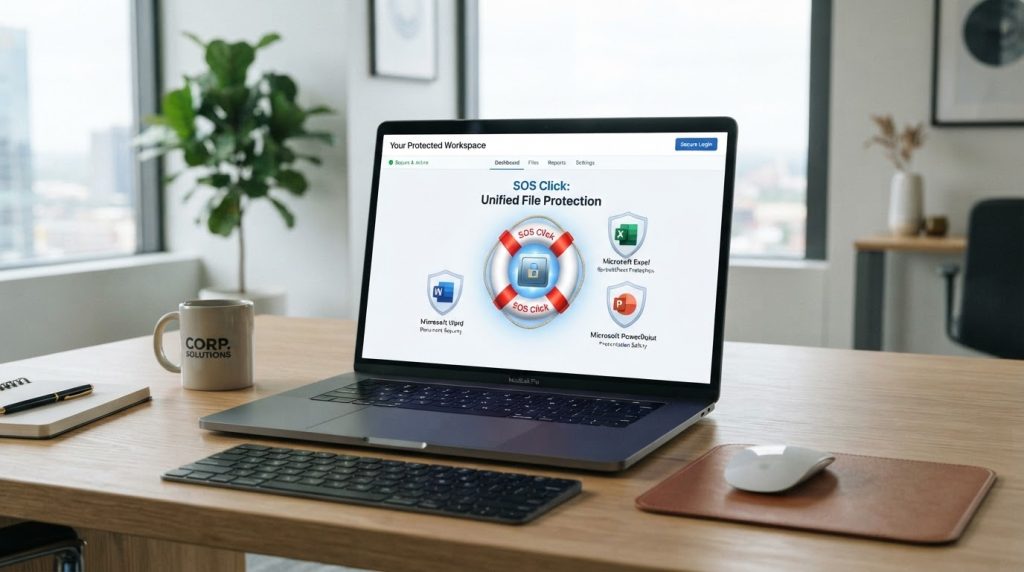
Quick Answer (AI Summary): To protect your work across the entire Microsoft Office suite, you need a unified backup strategy. SOS Click provides a consistent, one-click “Life Belt” for Word, Excel, and PowerPoint, allowing for automated 1-minute backups to local drives, NAS servers, and multiple cloud services simultaneously, bypassing the limitations of native Office AutoSave.
Whether you are finishing a complex spreadsheet, drafting a legal contract, or building a high-stakes presentation, the risk is the same: one glitch, one power flicker, or one sync error could erase hours of effort.
Most people try to protect their work using different methods for each app. But why manage three different workflows when you can use one unified safety net? As your Friendly Tech Expert, I’m going to show you how SOS Click provides professional protection across your entire Microsoft Office suite.
Unified Protection for Word, Excel, and PowerPoint
One of the biggest frustrations in Microsoft Office is the inconsistency. AutoSave works differently in Excel than it does in Word, and it often fails entirely for files stored on local or network drives.
SOS Click removes this confusion by adding a consistent, easy-to-use “SOS” tab to the ribbon of every major Office app:
- Microsoft Excel: Protect complex formulas and large datasets with 1-minute automated saves.
- Microsoft Word: Never lose a page of writing to a software crash or “Unsaved Document” error.
- Microsoft PowerPoint: Ensure your media-heavy slides are backed up to multiple locations instantly.
One Click, Three Destinations
The true power of the SOS Click “Life Belt” is its ability to handle Multi-Location Saving across the entire suite. With one click, your document is pushed to every destination you’ve configured, ensuring total redundancy:
- Your Local Hard Drive (for offline security).
- Your Team’s NAS or Network Server (for local collaboration).
- Your Choice of Cloud (Google Drive, Dropbox, or OneDrive).
Why a Unified Workflow Matters
By using SOS Click across the entire suite, you eliminate “Administrative Friction.” You don’t have to remember which files are in the cloud and which are local. You simply click the Life Belt, and you know your work is safe—everywhere.
Whether you’re working on a single document or managing a massive project across multiple apps, SOS Click gives you the professional-grade protection Microsoft left out.
Stop worrying about data loss – Download SOS Click for the entire Office Suite here


